01 / WRITE
More drive.
The gain control becomes a write operation. From PROTECT to OVERWRITE.
 ← All testsPublic experiment / 2026
Never / Hardware experiments / Dré Labre
A little overdrive.
A lot of curiosity.
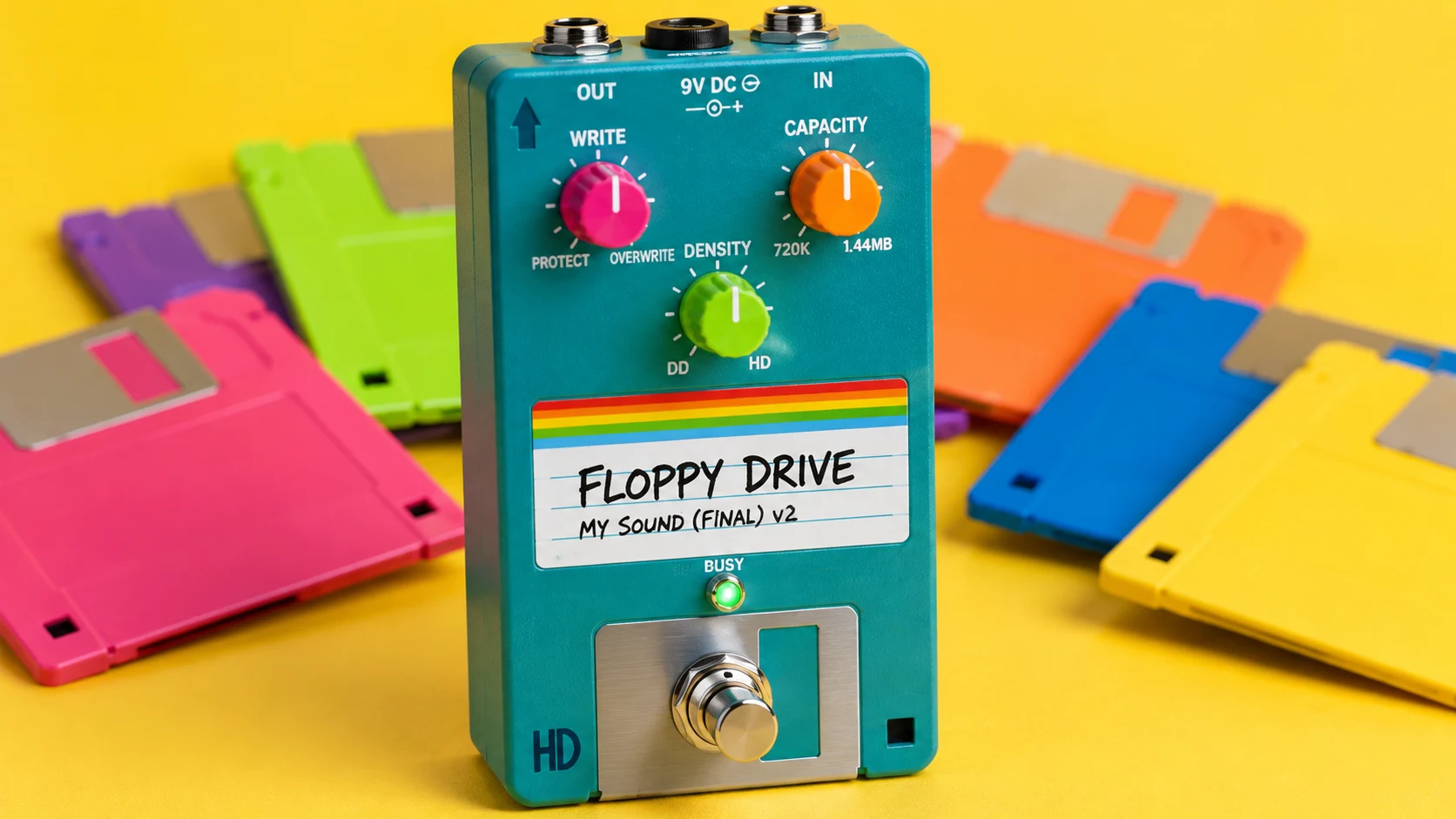
01 / The experiment
Dré Labre / Relentlessly curious tinkerer
What happens when a creative who has never used KiCad gives AI access to it?
The starting point was simple: make a Tube Screamer–style overdrive pedal, using through-hole components that I could eventually solder myself. Get to a bill of materials and a printed circuit board. Give it a personality along the way.
I’ve been exploring MCP, APIs and command-line tools: ways for AI to work directly with software. This test took that curiosity into KiCad for the electronics and Blender for the object around them.
The result is FLOPPY DRIVE. An overdrive pedal with an added layer of geekiness, and a useful lesson in how much work still lives between a convincing render and a working thing.
*The soldering iron comes later. This page documents the design experiment before fabrication and bench testing.
Choose the circuit, through-hole construction and the retro-computer idea.
Build the schematic, check parts and footprints, propose component placement.
Model the enclosure and controls. Explore materials, graphics and camera views.
Review dimensions, resolve fit, finish routing and eventually test real hardware.
02 / Inside the machine
The software can move quickly.
The parts still have to fit.
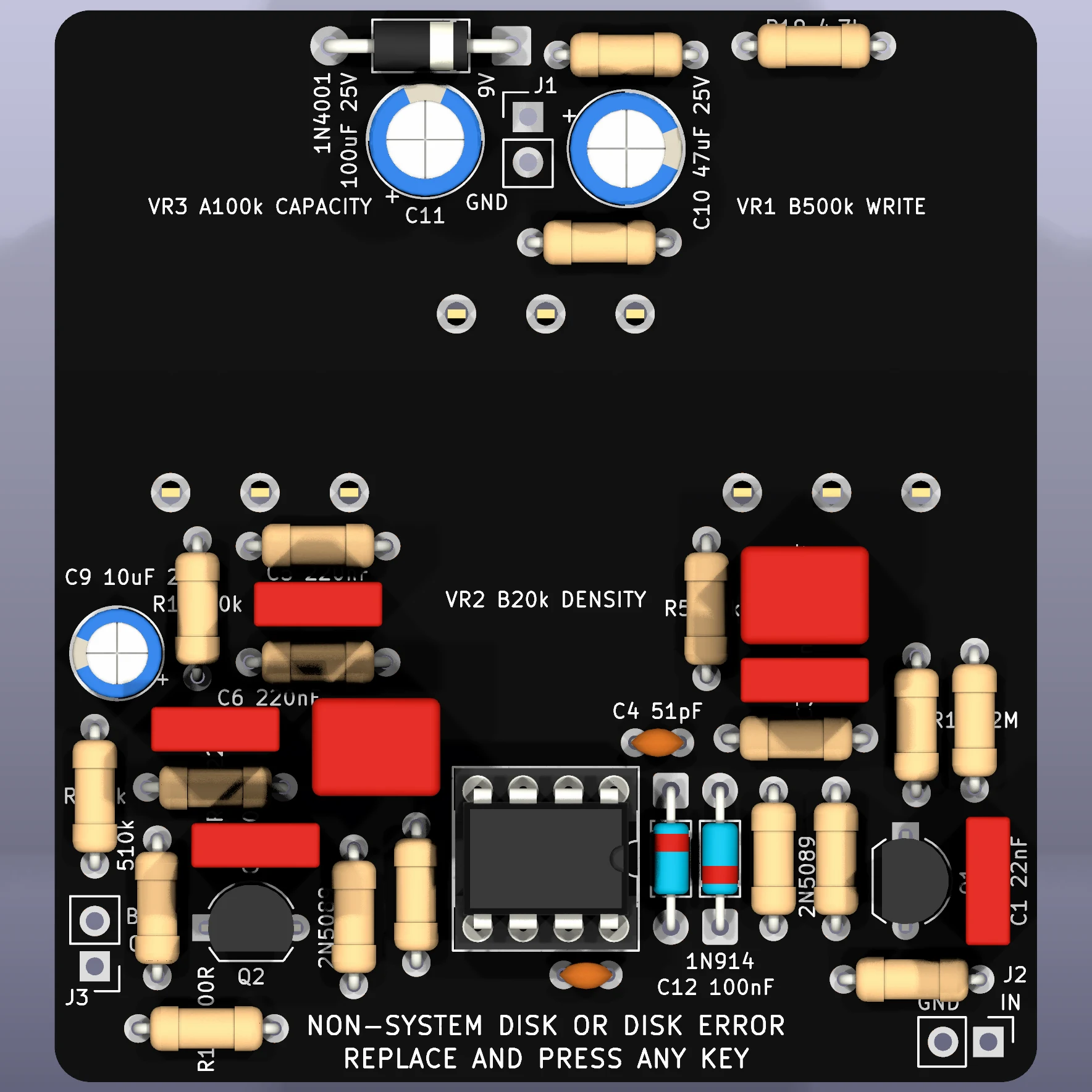
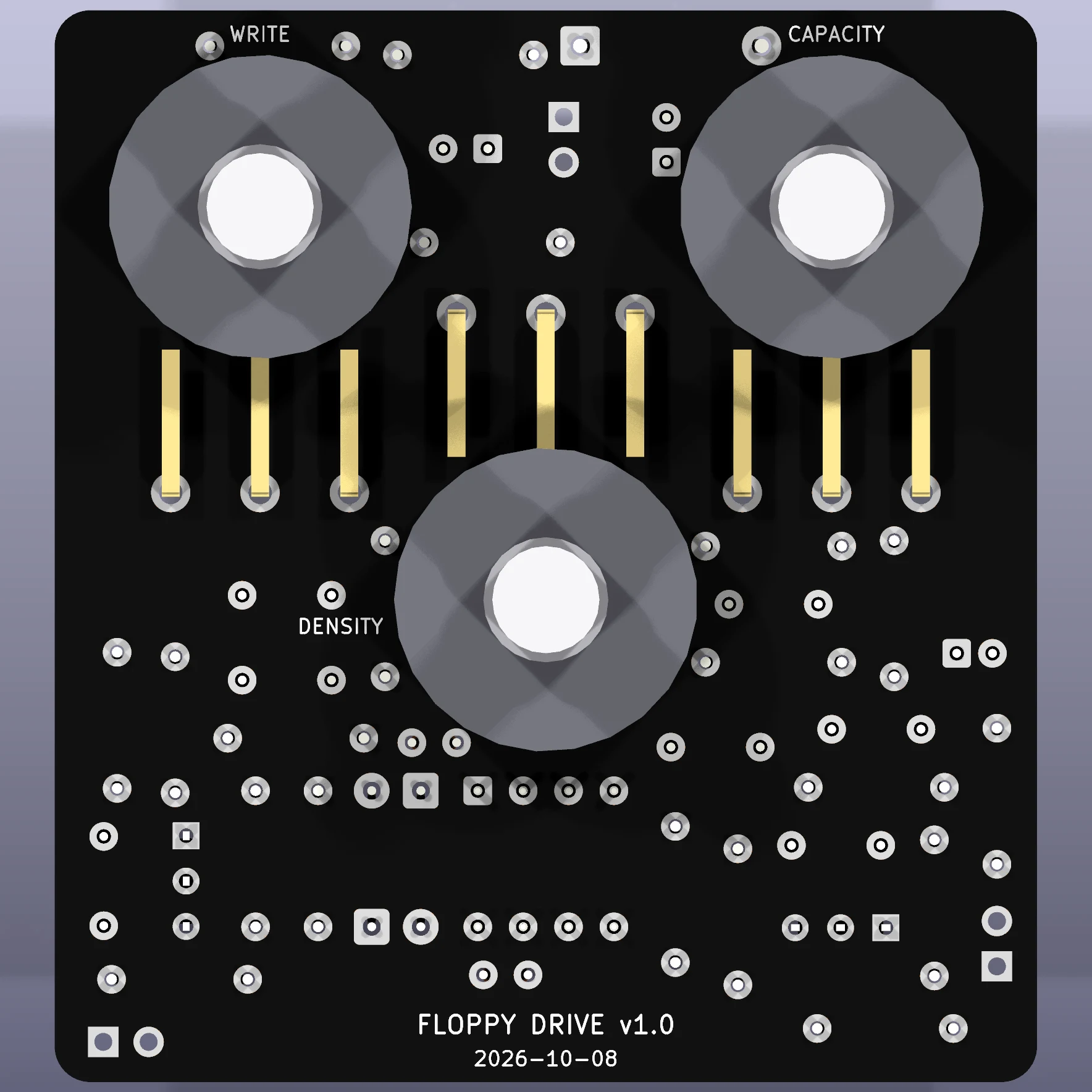
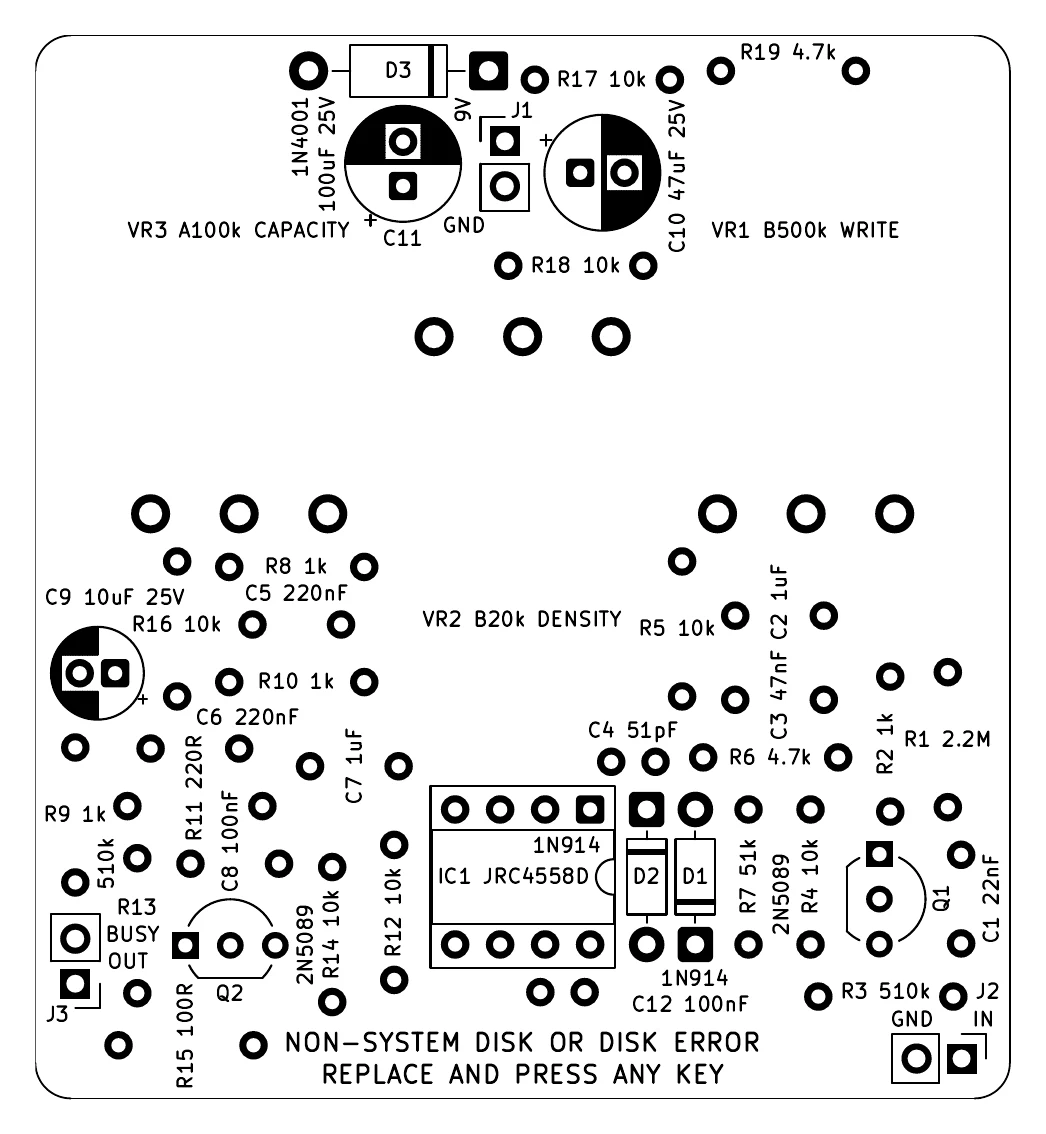
This is a build I want to assemble by hand. The design uses through-hole components, a socketed JRC4558D and three physical controls.
The bill of materials led to datasheets. Datasheets led to footprint checks. The potentiometers needed a custom footprint based on the supplied Alpha drawing, with space reserved for their bodies and legs.
The original 55 × 50 mm board proved difficult to place within the chosen constraints. The current proposal adds 10 mm of height while keeping the knob centres unchanged. That size change still needs approval.
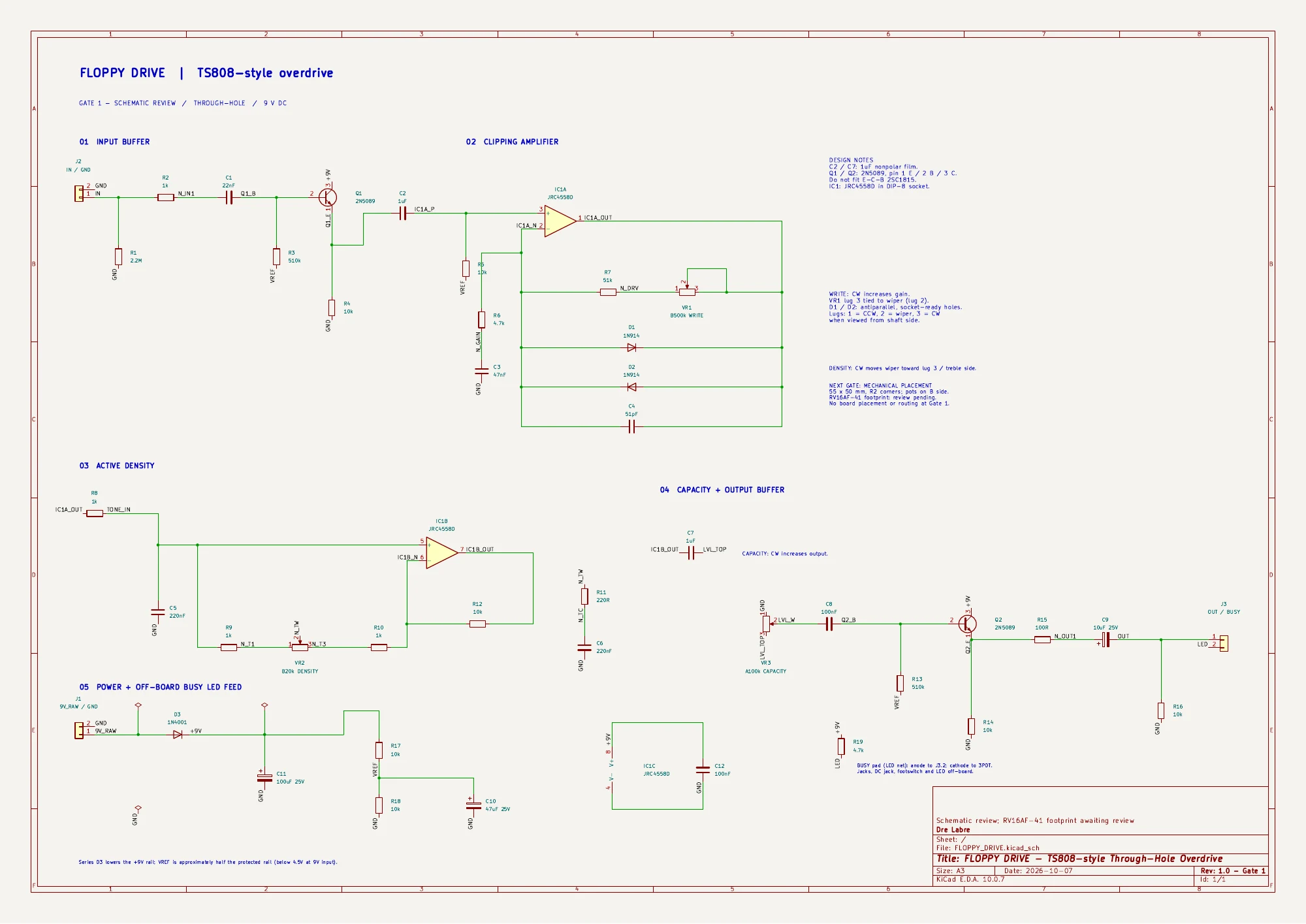
The saved electrical rule check reports zero violations. The placement check also reports zero violations, with 70 expected unrouted connections. These are design checks. The circuit has not been bench tested, and the board is not ready for manufacture.
03 / Give it a personality
A familiar circuit.
A very personal enclosure.
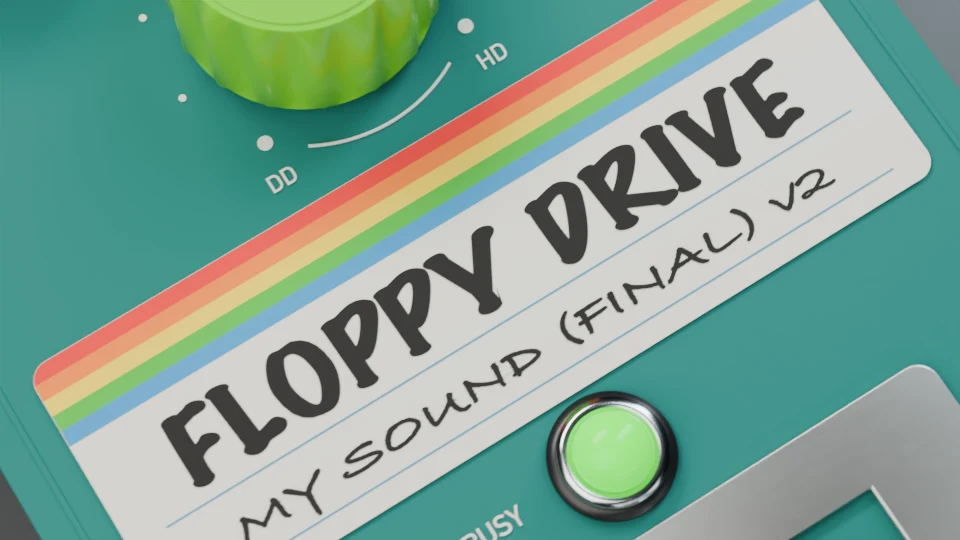
While the electronics took shape, Blender became the place to explore what this thing should feel like. The visual concept borrowed from colourful disks, handwritten labels and the satisfying little metal shutter of a floppy.
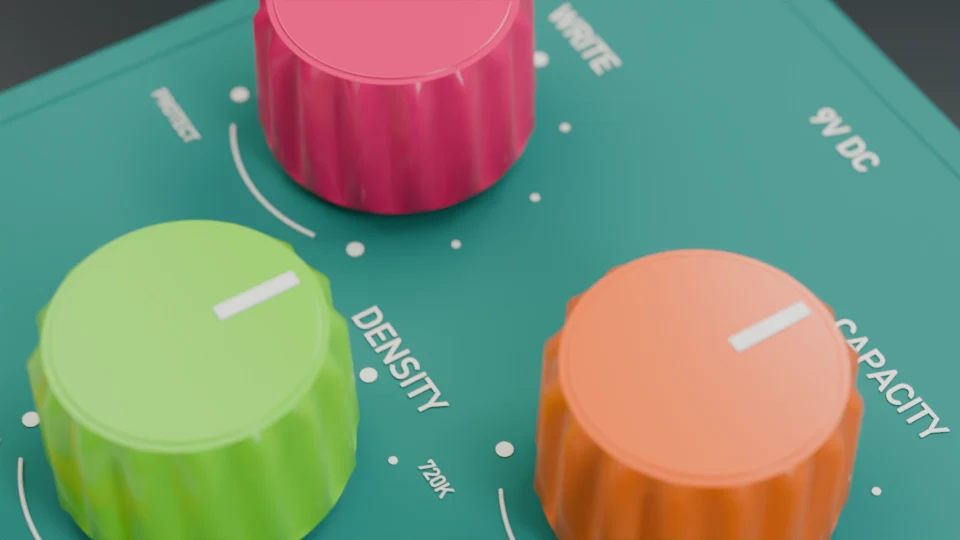
The model moved toward opaque matte teal, with pink, orange and lime knobs. It uses a Hammond 1590N1 enclosure reference. The three knob centres were checked against the PCB and drill template; the footswitch, connectors and internal fit still need physical review.
A camera moves around the matte-teal FLOPPY DRIVE pedal, then cuts to close-ups of the pink WRITE, lime DENSITY and orange CAPACITY knobs, the rainbow label reading “FLOPPY DRIVE / MY SOUND (FINAL) v2”, and the metal footswitch beside the green BUSY light. A final wide view dissolves back to the opening view. This silent Blender animation shows the proposed exterior, not a working physical pedal.
01 / WRITE
The gain control becomes a write operation. From PROTECT to OVERWRITE.
02 / CAPACITY
The level control borrows the disk’s capacity scale. 720K to 1.44MB.
03 / DENSITY
The tone control gets a double-density / high-density identity. DD to HD.
04 / Still loading
Even easy hardware is still freaking hard with algorithmic help.
AI helped me work in software I had never used and make progress on an object I wanted to exist. It also gave me plenty to review: dimensions, component assumptions, mechanical clearances and what “passed” actually means.
The interesting part is how much closer a curious tinkerer can get. A small foundation of knowledge goes a long way. Then comes the soldering.
Approved schematic. BOM prepared. Electrical checks clear.
43 footprints placed. Taller board proposal awaiting approval.
Complete copper routing, resolve connections and verify mechanical fit.
Order parts and PCB, print the enclosure, solder, then bench test and play.
BUSY / A sound demo comes after the physical build.
Explore more tests ↗